
To view and manage user details, passwords, and subscription information.
Open the Account Section

I. User information
In this field, users can see their name, email, password, reset password if you already had one.
To change or update your personal details, click on “Edit details”.

Here, you can change your first name and last name.
Note: To change your current email, a password is required. If you signed in using a Google account, a password may not have been set. In this case, please create a password by following the instructions below.

Set Up a Password
If you do not have a password yet, scroll down to the Set up password section.
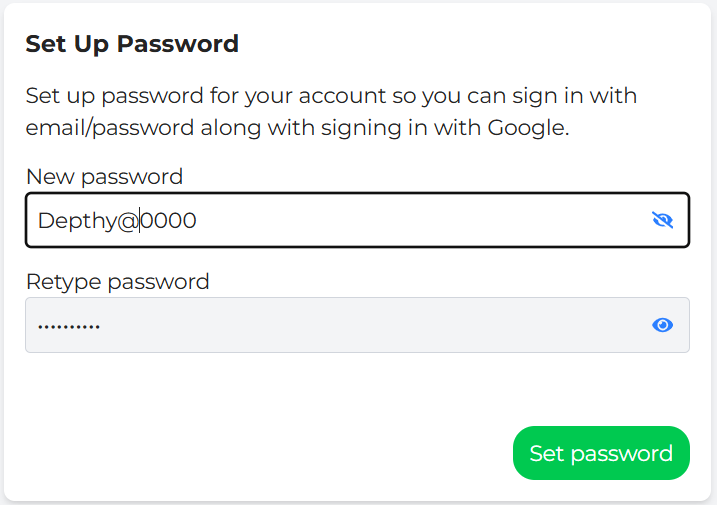
Enter your new password, then re-enter it in the second field to confirm.
Password must contain at least 8 characters including a number and a special character.
Click Save password to finish.
Please see the example below.
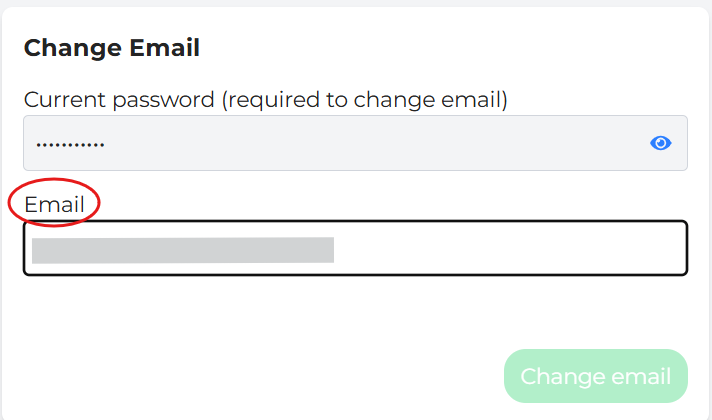
After setting a password, you can change your email address.
Enter your current password.
Enter your new email address.
Click Change email to save the update.
You can also change your current password by following these steps:
Enter your current password.
Enter a new password.
Confirm the new password.
Click Change Password to save your changes.

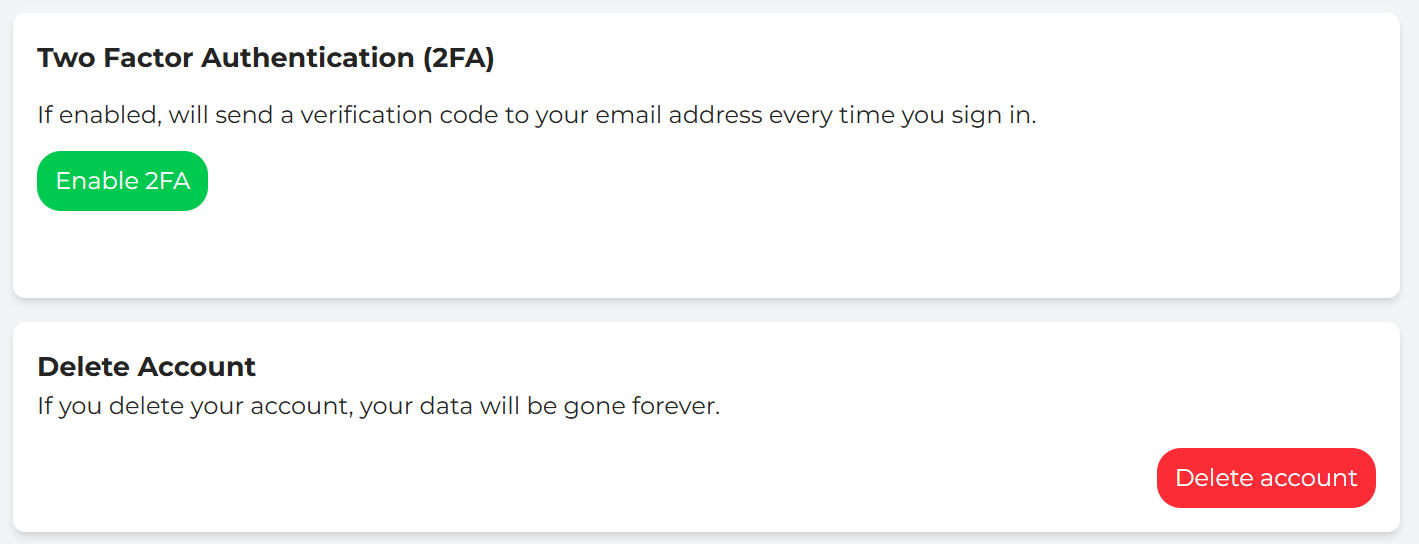
Two-Factor Authentication (2FA)
DepthNode now supports Two-Factor Authentication for added security. When enabled, a verification code will be sent to your registered email each time you sign in. Click Enable 2FA to activate this feature.
Account Deletion
You can permanently delete your DepthNode account at any time. Please note that this action cannot be undone and all associated data will be permanently removed. Click Delete Account to proceed with caution.
II. Current plan
The current plan shows your existing subscription type. Once signing up, all users are automatically placed on the Free plan.
Plan detail: The Free Plan includes a limited amount of free monthly credits. Your usage will appear as “$0 used of $X monthly credits,” where $X represents the available free credits and may change.
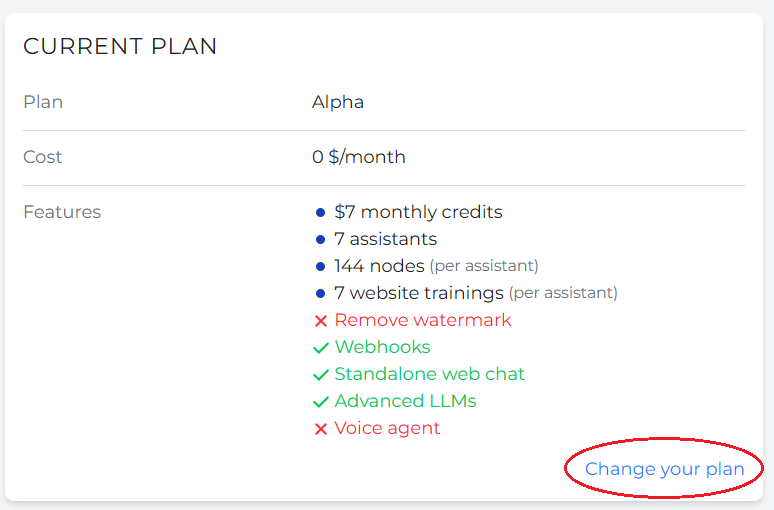
Users can upgrade the free plan to a new paid plan by clicking on “Change your plan” on the bottom right.
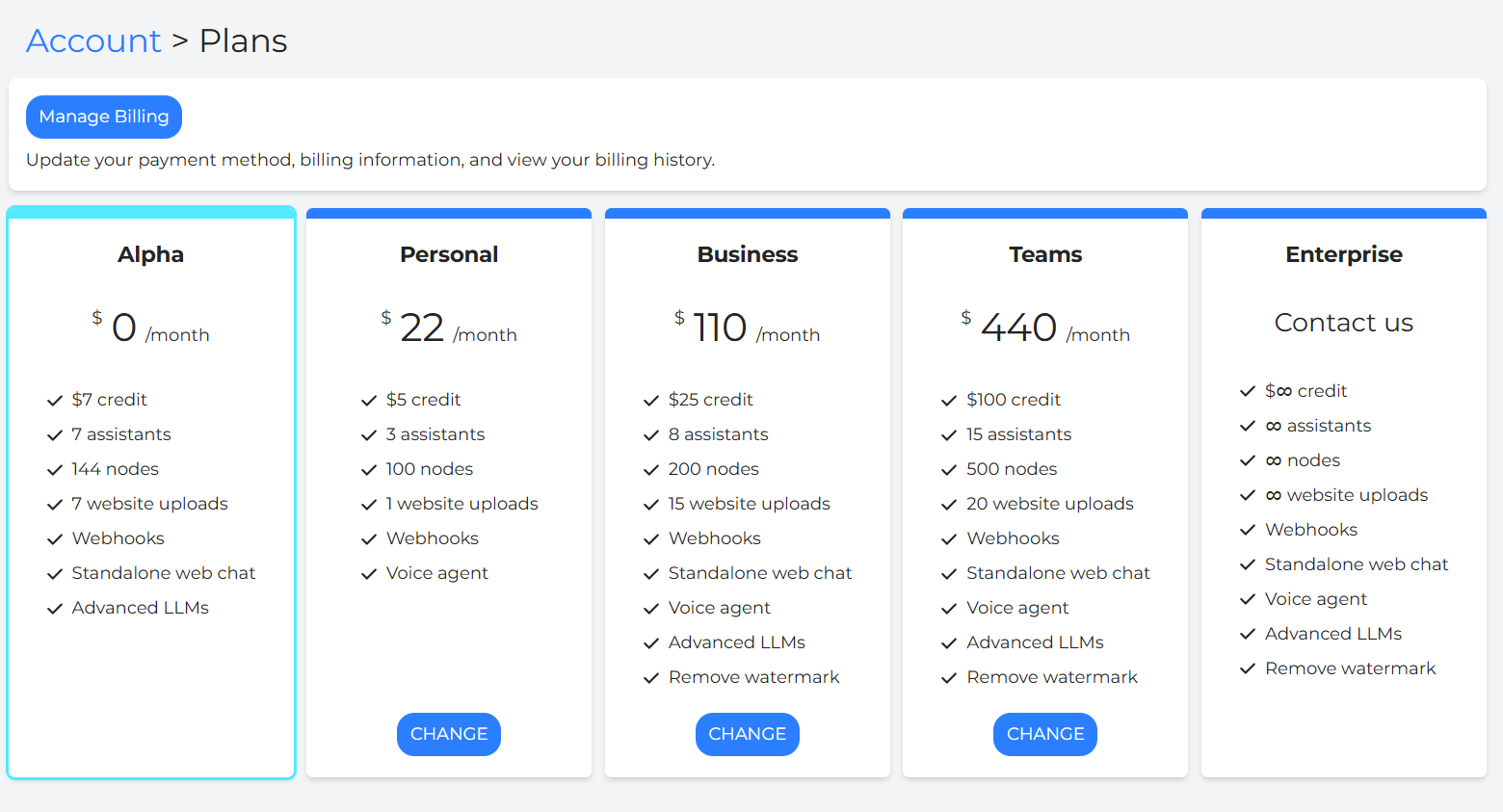
In the Plan section, you can see four types of paid plans which are Personal, Business, Team, and Enterprise. Each plan is clarified with a monthly cost, and limited features. You can click on “Change” button below which plan you wish to change. However, Enterprise plan adoption requires a direct contact to our team.
Usage and Costs
Users can view how DepthNode measures AI usage, token consumption, and credit balance under the current subscription plan.
Open the Usage section by clicking the Usage icon on the left hand side panel.
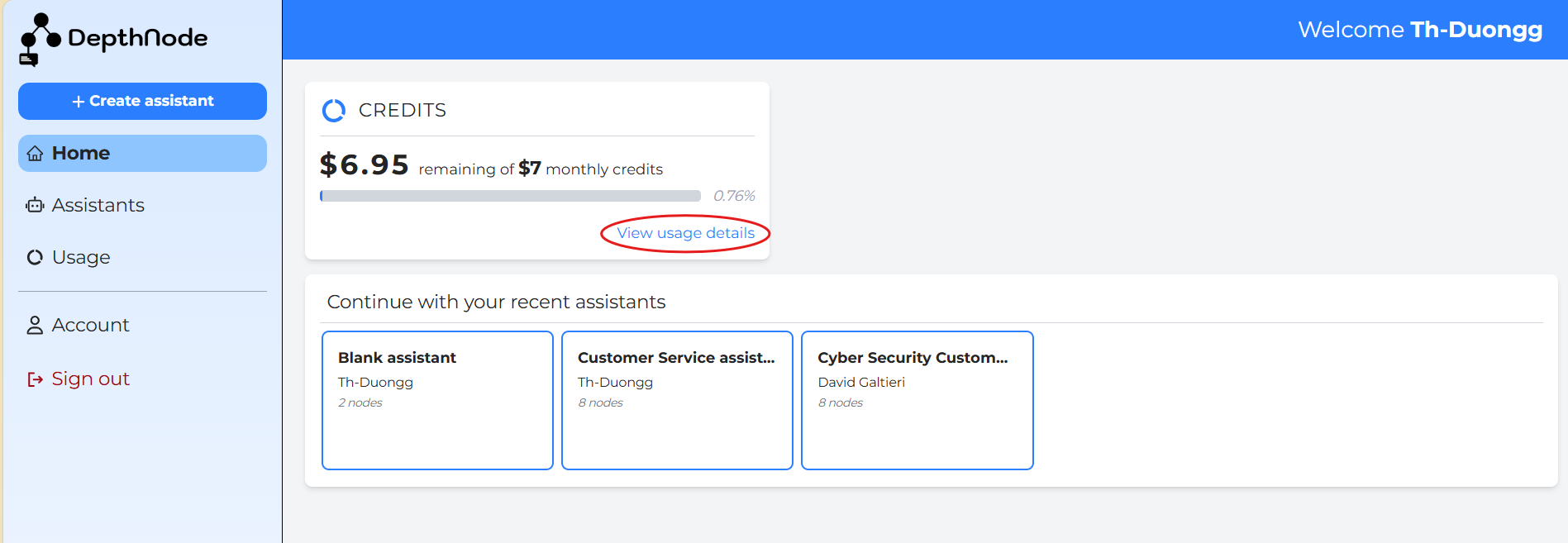
In another way, users can click on “View usage details” on the dashboard.
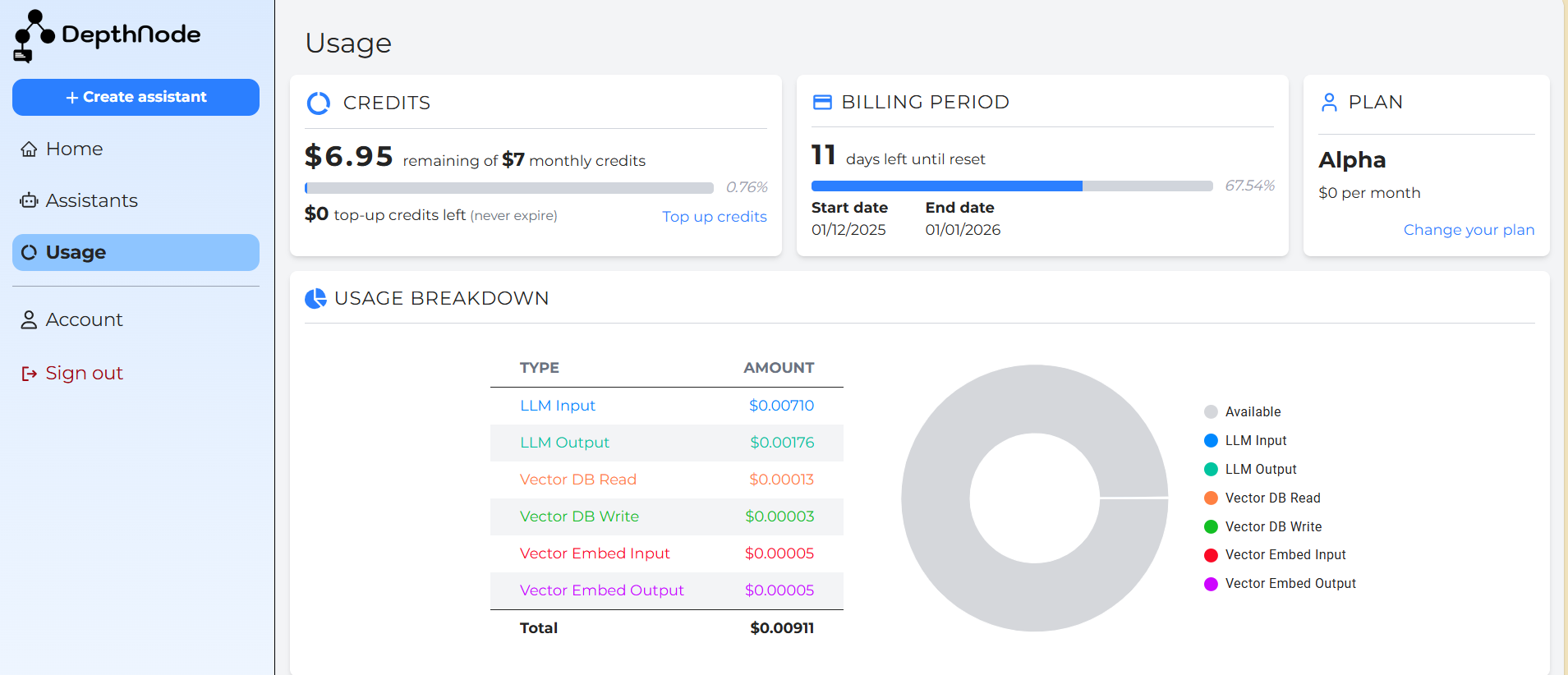
The Usage screen displays several key sections:
Credits:
Shows the total monthly credits available. Under the Alpha Plan, users receive $7 monthly credits at no cost.
The progress bar indicates the percentage of credits used (e.g., 0 % used of $7 monthly credits).
Billing Period:
Displays the start date, end date, and the number of days left before credits reset (e.g., 11 days left until reset).
Plan:
Lists your current plan. During testing, all accounts remain on the Alpha Plan – $0 per month.
The option Change your plan will become active once new plans are released.
Usage Breakdown:
Shows how credits are distributed across DepthNode’s cost categories:
• LLM Input – tokens generated from user prompts.
• LLM Output – tokens used for AI responses.
• Vector DB Read / Write – database operations used to store and retrieve content.
• Vector Embed Input / Output – small costs incurred when training data are converted into vector embeddings.
The chart at the right provides a visual breakdown of these categories.
Use this page to monitor credit usage regularly and ensure AI activity remains within your monthly allowance.
