

I. Embed on Website
To publish your assistant on your website, please follow these steps:
-
Copy the embed code
Find and copy the embed code provided in your assistant settings. -
Send the embed code to your web developer
The embed code is technical and must be added to the website’s code, so this step is handled by a web developer. -
Add the embed code to the website
DepthNode recommends placing the embed code at the bottom or above <body> tag so the page loads smoothly before the assistant appears.
If the assistant does not appear, the code can also be placed at the top of the <body> tag. -
Add your website domain to Allowed Domains
Enter your website’s domain name in the Allowed Domains list.
For example, www.theproject.com.au is a domain. -
Click Save Changes
Make sure to save your updates after adding the domain. -
Check the assistant on your website
Refresh the page to confirm the chat bubble appears correctly.
II. Standalone Web App
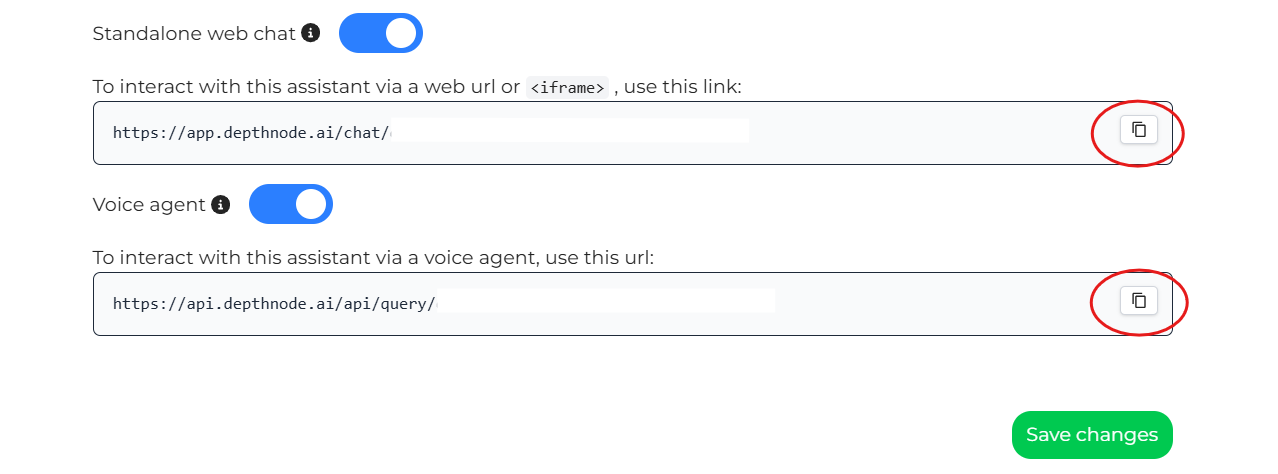
The DepthNode Assistant can run as a full web application on its own page or mobile device. This allows you to have a dedicated page just for your assistant.
Steps to Use:
-
Copy the assistant URL.
-
Open it in a new browser tab.
-
The page will load the DepthNode Assistant as a standalone app.
-
To disable or enable the assistant:
Turn off the assistant and save changes → refreshing will show an error loading page.
Turn it back on and save changes → refreshing will load the assistant properly.
Tip: The “Standalone Assistant” mode is useful for creating a dedicated web page or mobile-accessible version of your assistant.
III. Voice Agent Support with VAPI Integration
DepthNode can be integrated with VAPI to enable voice agent interaction using your assistant. This allows your assistant to function as a voice-enabled AI agent.
Steps to Integrate:
Open vapi.ai.
Sign in (Google account can be used).
Hover over the menu and click the Assistant icon.
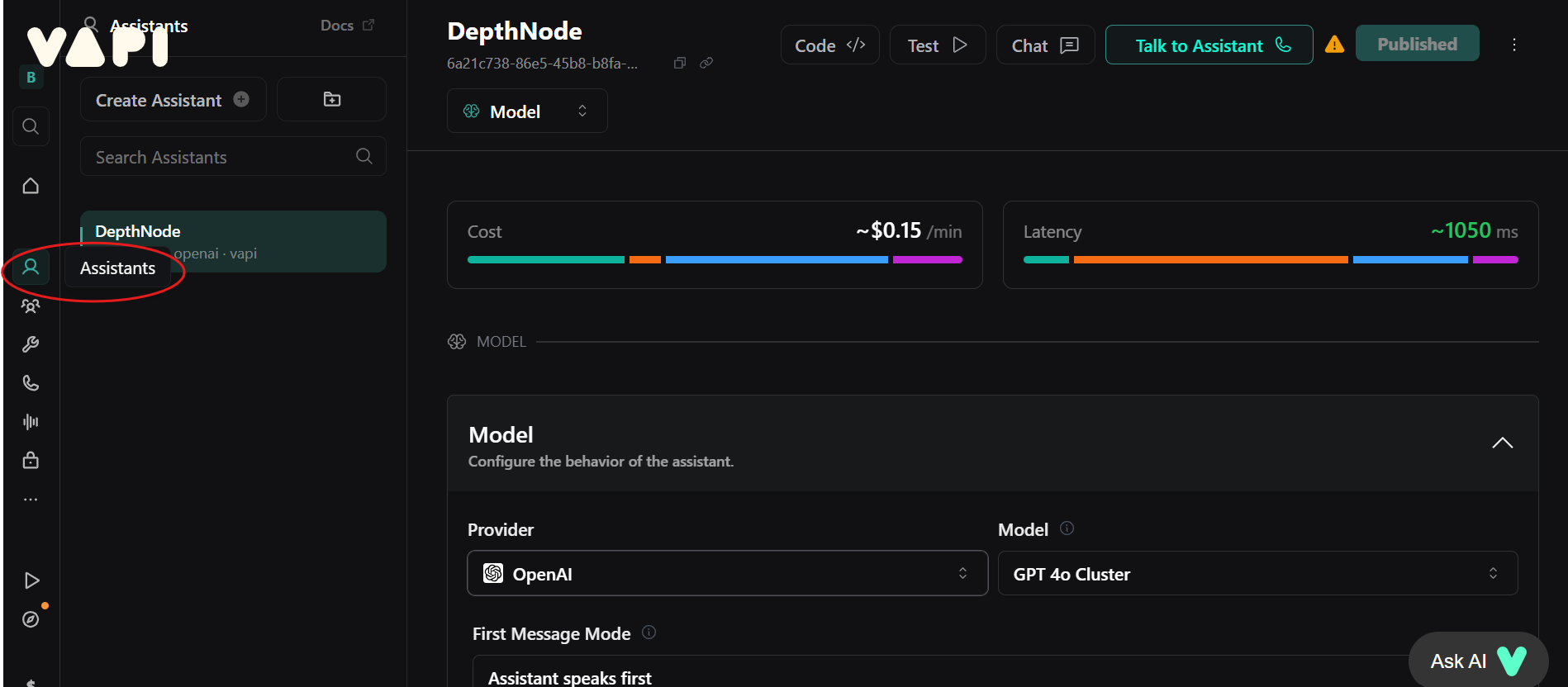
Select Custom LLM as the provider.
Enter depthnode as the model name.

In the DepthNode Publish section, turn on Voice Agent.
Copy the generated URL and paste it into VAPI Custom LLM URL field.

