
Training with Documents
Uploading document files adds their extracted contents to the knowledge base, allowing the AI assistant to reference the information when responding to user queries.
Steps to Upload Documents
-
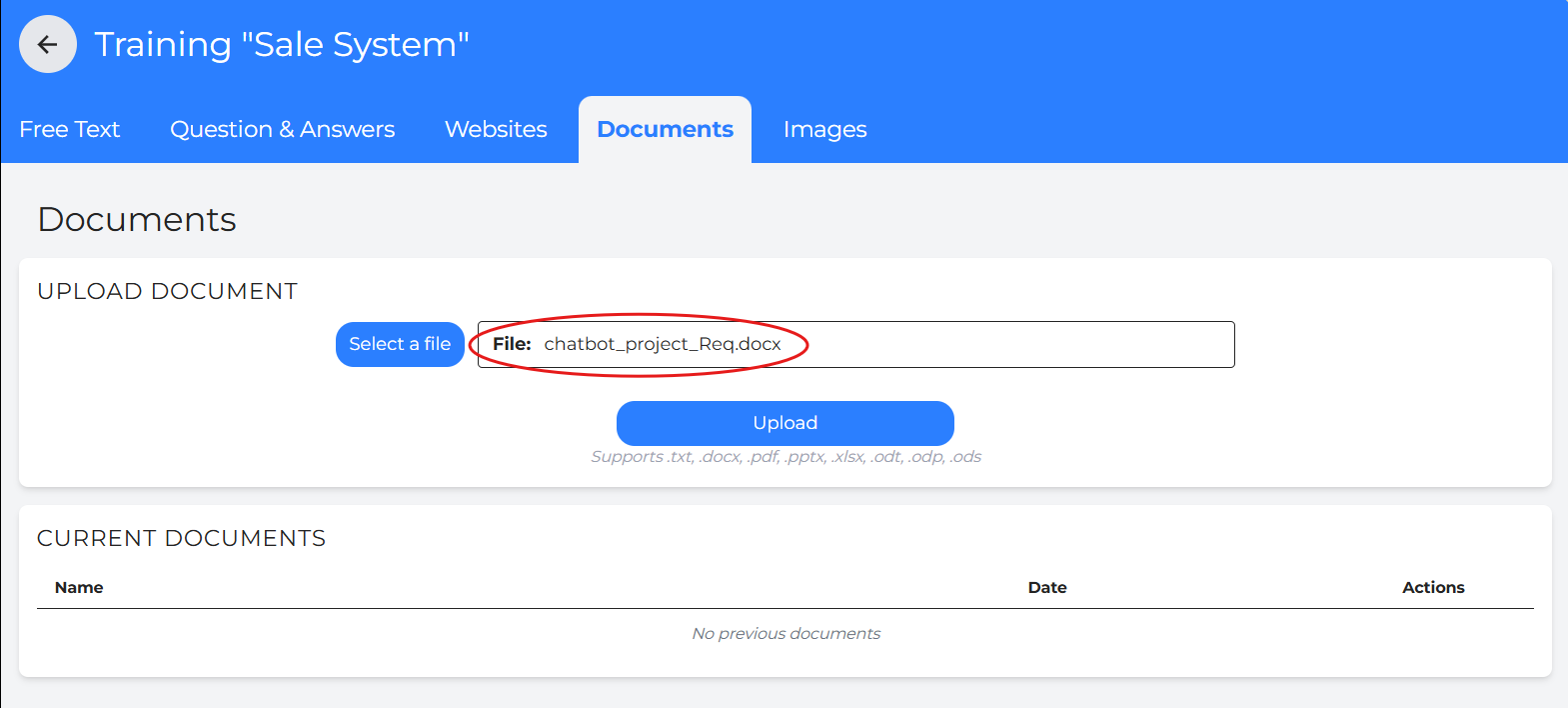
Go to the Documents section in Training.
-
Select a supported document file from your device.
-
Click Upload.
-
Once uploaded, the document will be added to the knowledge base and used by the chat to answer user queries.
Supported Document Types
You can upload documents such as, Word files, PDFs, PowerPoint presentations, Excel sheets.
Note:
Supported file formats include: .txt, .docx, .pdf, .xlsx, .odt, .odp, and .ods.
After uploading, users should review the extracted text to ensure the content was processed accurately, especially for complex formatting, tables, or scanned documents.
Current Documents
Each uploaded document is listed with its file name and the date and time it was added.
To download a document, click the download icon.
To delete a document, click the red bin icon.
The Search bar is also available for Documents training.
Tip: Documents cannot be viewed directly in the interface, so download the file if you need to review its contents.

