
Uploading images allows the assistant to read and learn from text contained within images, such as screenshots, diagrams, or scanned documents.
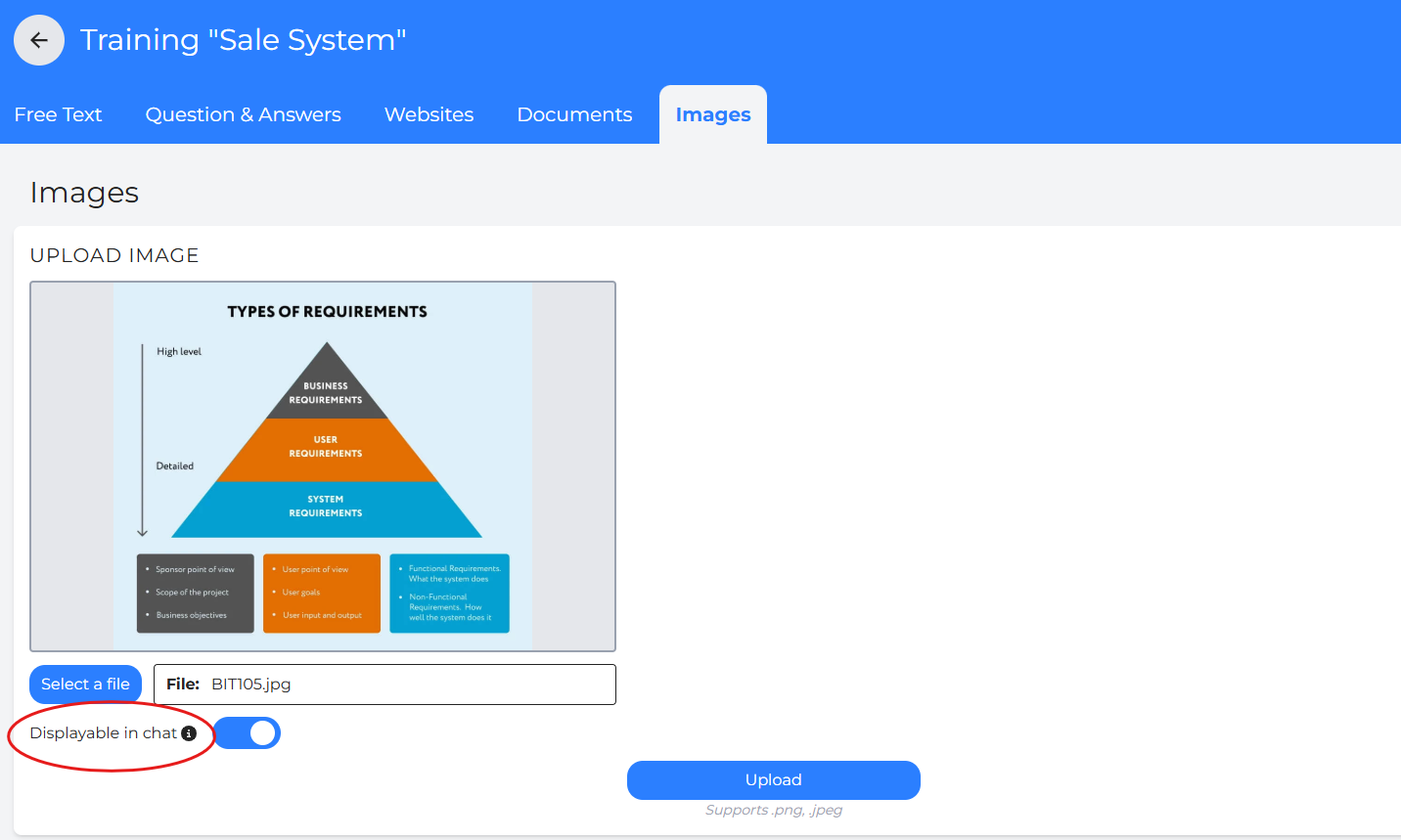
Steps to Upload an Image
-
Go to the Images section in Training.
-
Select an image file from your device.
- Supported formats: PNG and JPEG only.
-
(Optional) Enable Displayable in Chat if you want the image to appear in user conversations when relevant.
-
Click Upload.
-
Once uploaded, the image will be analyzed and added to the knowledge base.
What Happens After Upload
DepthNode uses Optical Character Recognition (OCR) technology to extract text from uploaded images and add the content to the knowledge base.
To ensure accurate text extraction, uploaded images should be clear, high-quality, and easily legible. Blurry images, handwritten text, low-resolution screenshots, or heavily formatted layouts may reduce extraction accuracy.
-
The image is uploaded and sent to the AI for analysis.
-
The AI reads and extracts all text from the image.
-
A summary and transcription of the image content are generated.
-
The extracted information is added to the knowledge base.
-
You can review the result by clicking the edit (pencil) icon.
-
You may modify the extracted text or confirm it as correct, then click Save Changes.
Note: After processing, users should carefully review the extracted text and make corrections if necessary to ensure the knowledge base contains accurate information.
How Images Work in Chat
If Displayable in Chat is turned on, the image may be shown directly in the chat when it helps answer a user’s question.
If turned off, the image remains private and will never appear in the chat, even if its content is used to answer questions.
Tip: Always review and confirm the extracted text to ensure the assistant is trained with accurate information.
Current Images
Each uploaded image is listed with its file name and the date and time it was added.
To edit an image, click the pencil icon, update the image description or extracted text, and then click Save Changes.
To delete an image, click the red bin icon.
To look for an uploaded image, enter its name in the Search bar.
Tip: Review the image description carefully to ensure the assistant is trained with accurate information.

