The Dashboard is your launchpad for managing assistants and account settings.
Explore the Dashboard
After successful login, you are directed to the Dashboard.
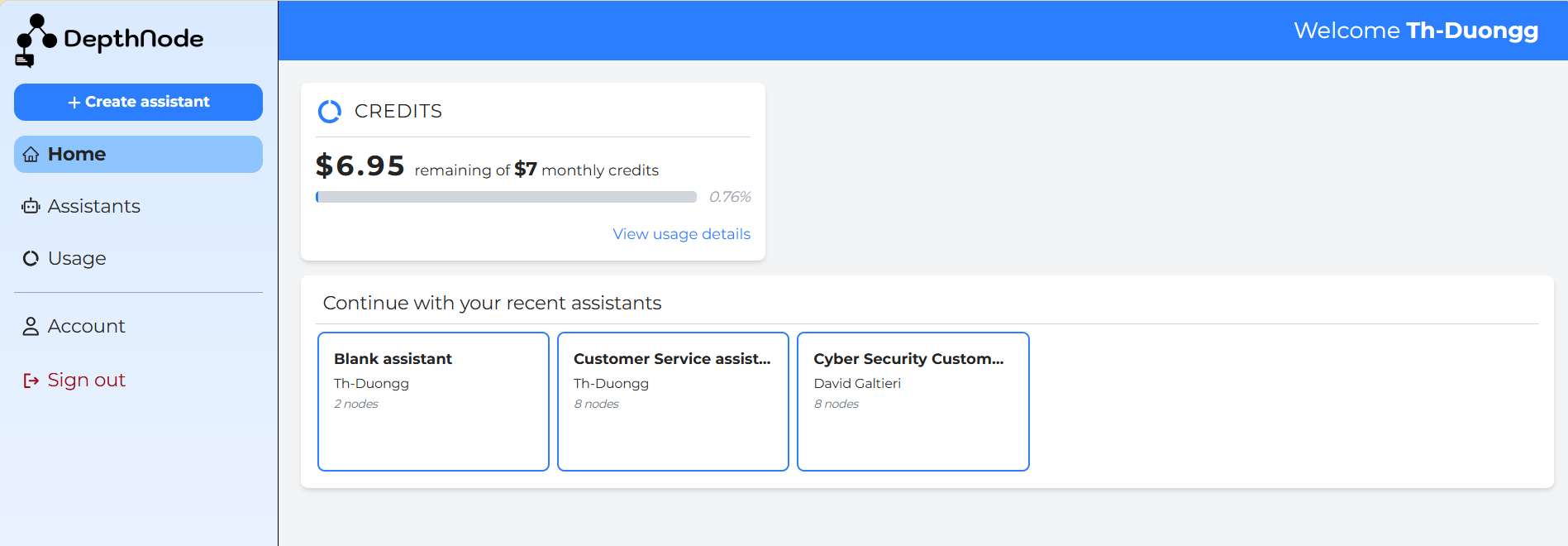
The top banner greets the user by name (for example, Welcome Th-Duongg).
The Credits section displays your monthly usage allowance. During the Alpha plan, users receive $7 in monthly credits, as shown on the top card. The bar indicator shows how much of that allowance has been used.
To view a full breakdown of spending, click View usage details.
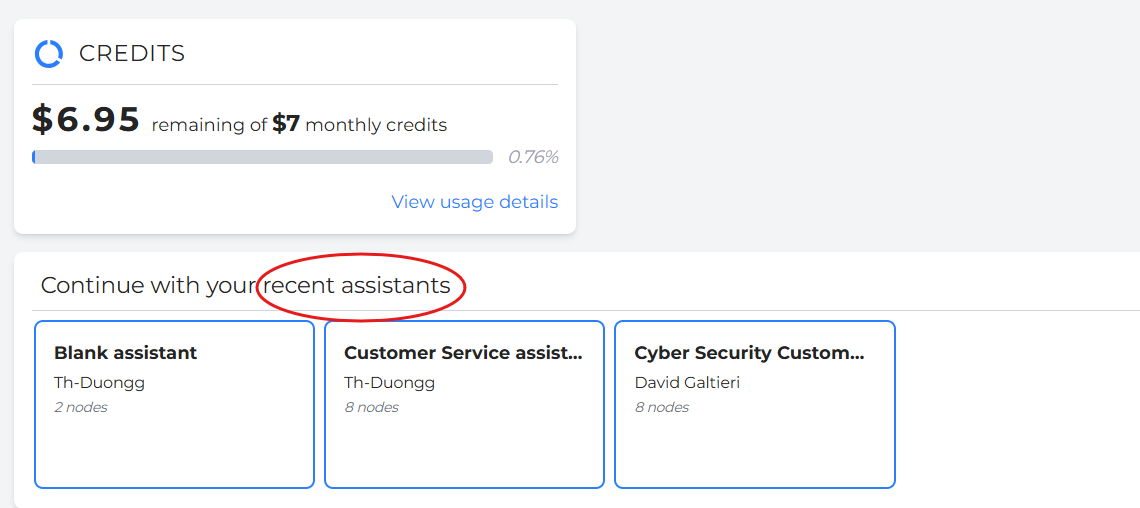
The lower panel shows recent assistants, projects you worked on most recently. Select any assistant card to open and continue editing.
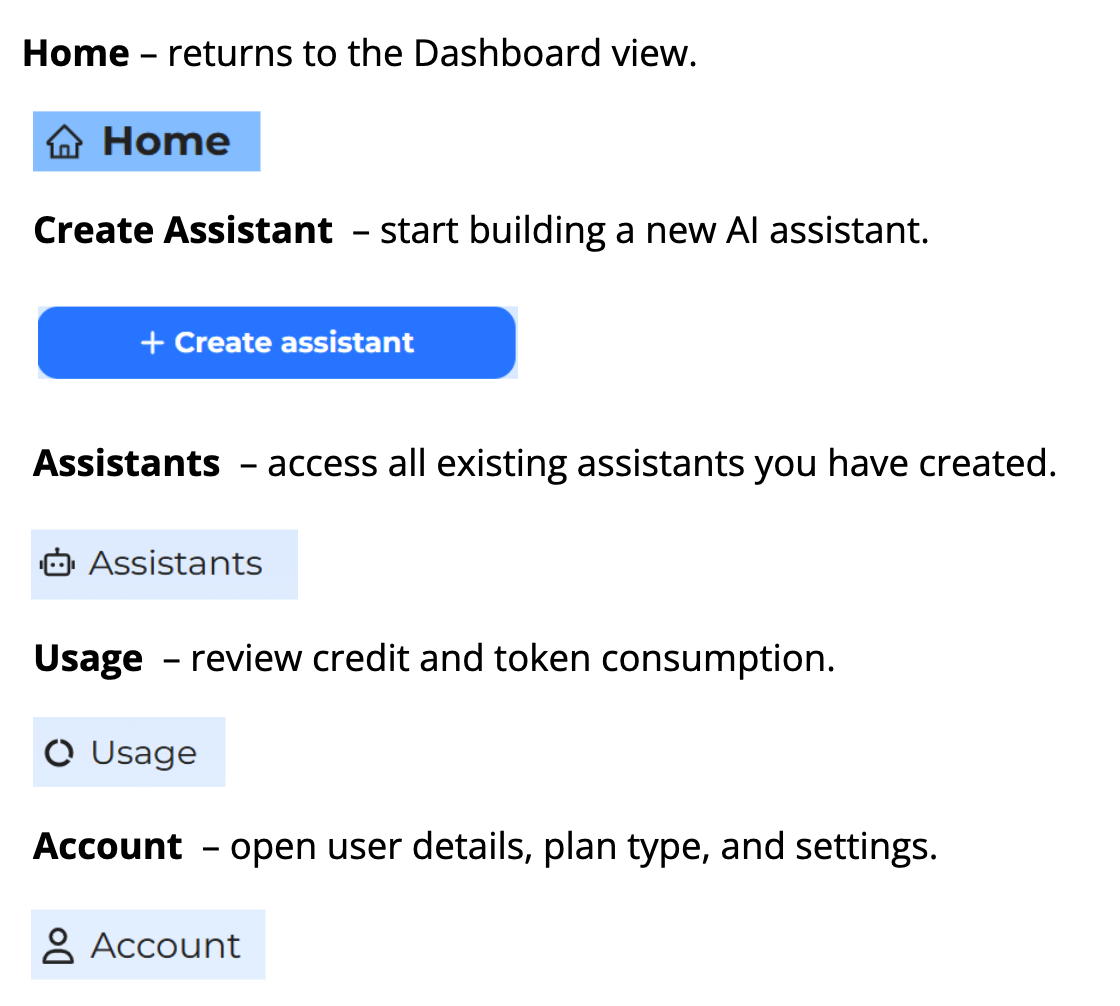
The left-hand panel contains navigation icons for:
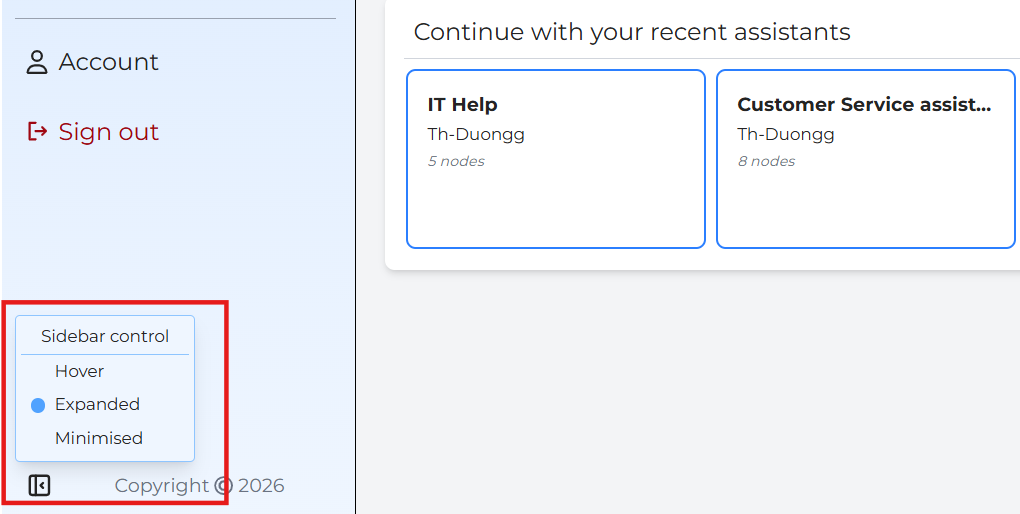
Sidebar Control
When an assistant’s tree becomes large, managing dozens of nodes can be difficult.
DepthNode includes a Sidebar Control feature that simplifies navigation.
- Hover State: The sidebar expands automatically when you move the cursor over it, revealing labels and icons.
- Expanded State: The sidebar stays open, showing icons and titles for all sections.
- Minimized State: Only icons are visible, keeping the workspace clean.
The Hover Sidebar Control saves time for editors by eliminating constant scrolling.
It is especially useful when testing large decision trees or comparing flows across departments.