
Persona
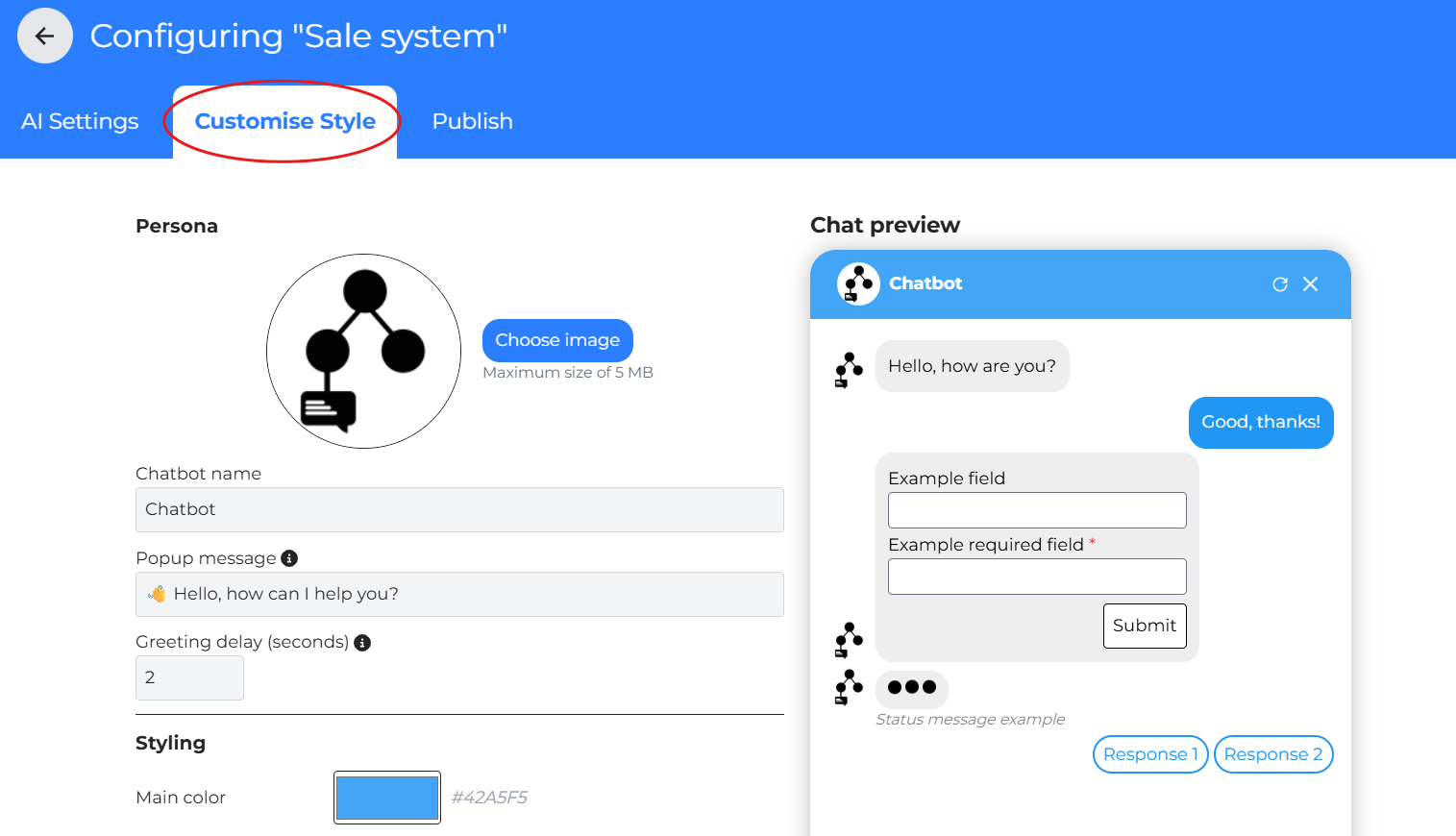
On the Configuring page, switch to the Customisation Style tab. This area controls how the chat window looks when it appears to users.
On the right hand side, the chat preview shows how the chat interface and messages will appear to users.
Ensure every change match the website’s branding .
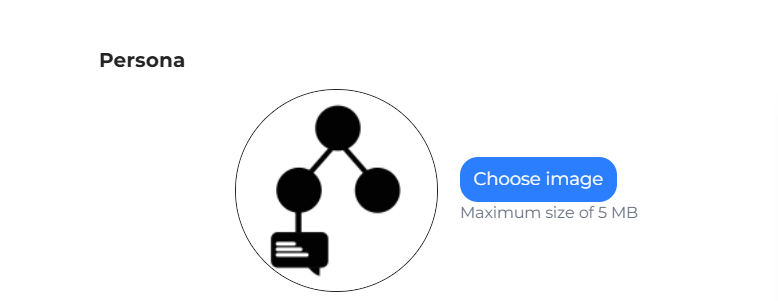
Upload Logo
Click the blue button “Choose image” to add a brand or project image that will display at the top of the chat window.
Uploading a logo is optional, it can be left blank during setup.
Chatbot Name
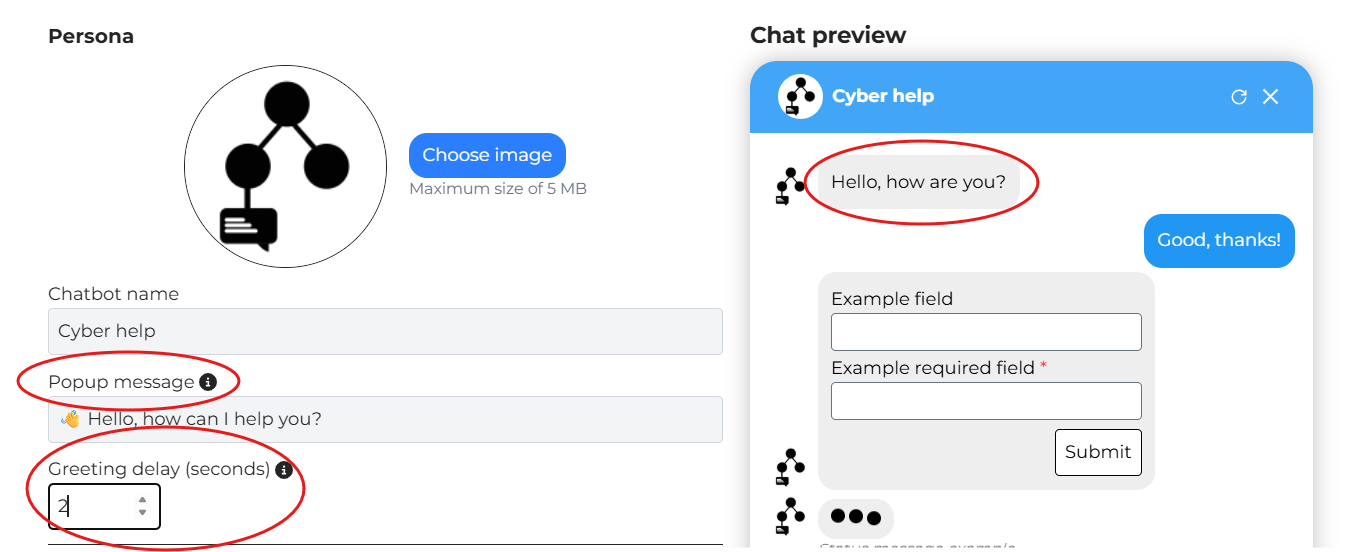
Enter a clear, descriptive name for the assistant (for example, Cyber help).
The name appears in the chat header next to the logo and helps identify the chat’s purpose.

Popup Message and Greeting delay
The pop-up message greets users and encourages them to engage with the AI chat.
Users are prompted to enter a short message here.
Greeting delay determines the delay, in seconds, before the greeting message appears.
Styling and Dimensions
Styling allows you to change:
Main colour
Header text colour
Background colour
User bubble colour
User text colour
Assistant bubble colour
Assistant text colour
You can also change the Chat window Width and Height for better alignment on a webpage or embedded view.
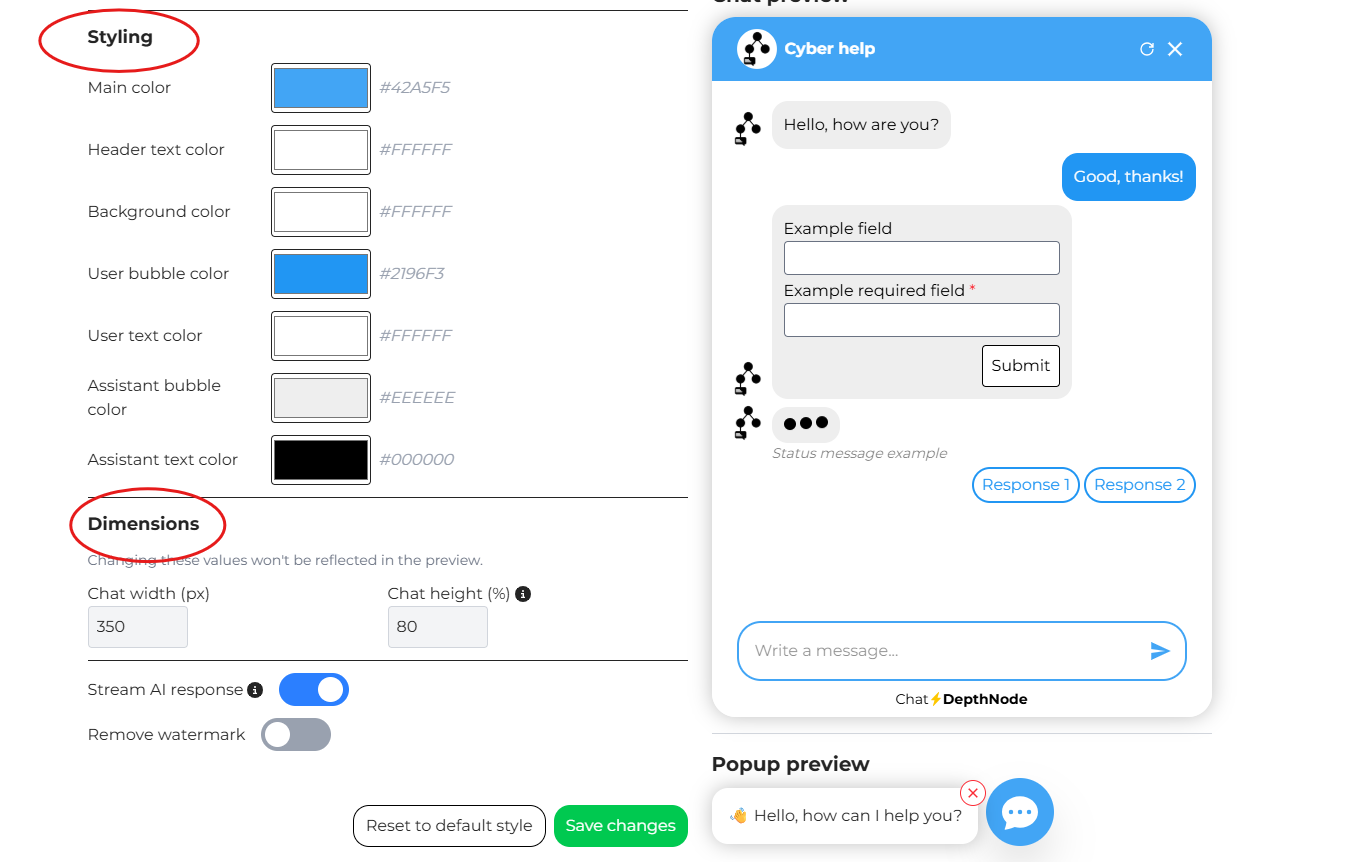
For an example, the Styling has been changed
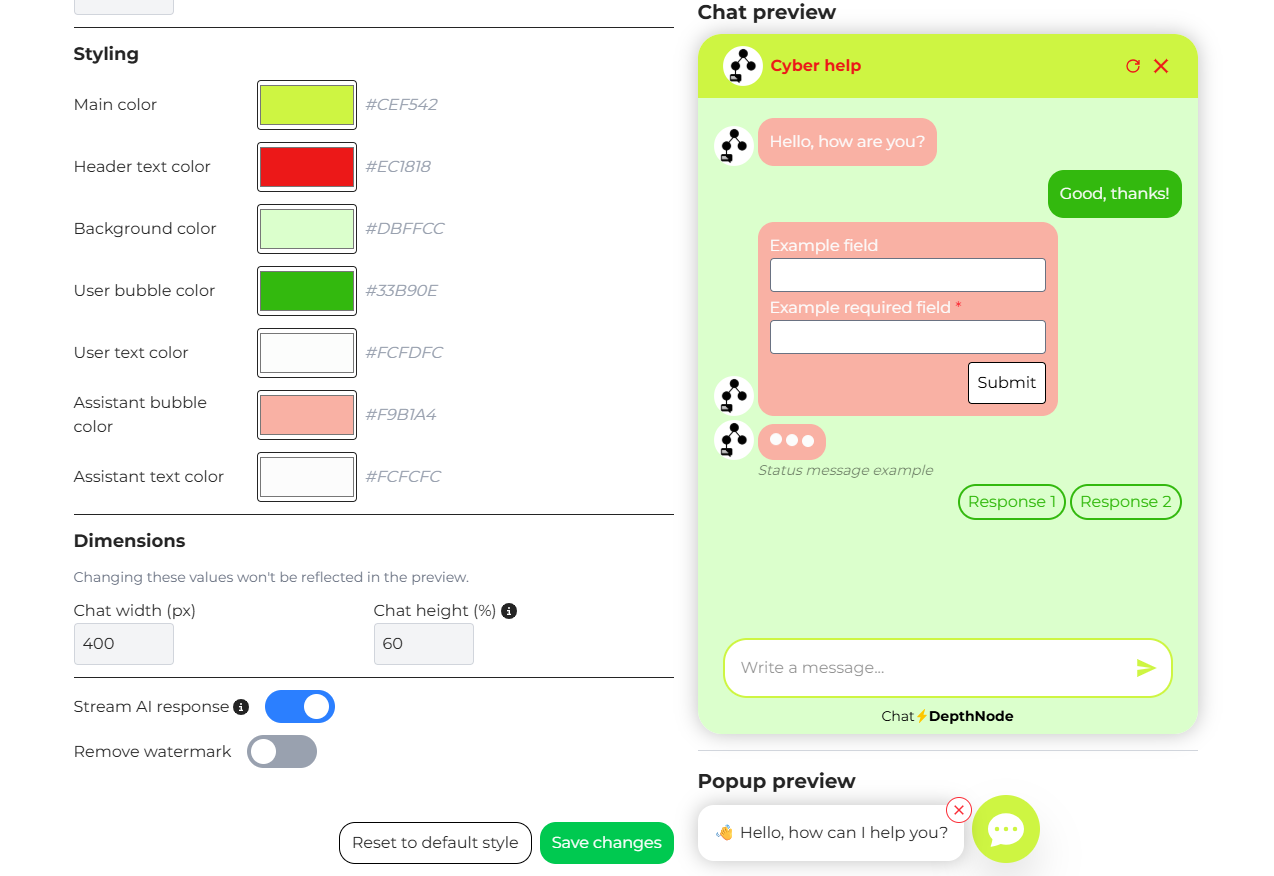
Always click the green button Save changes after completing customising.
